You can assign one or multiple enterprise tags to a business asset.
To tag a business asset (for example, a business term), follow these steps:
- Go to Application Menu > Data Governance > Business Glossary Manager > Explore.
- Select Business Terms tab, then select the Business Terms card from the workspace. The view changes to the business terms summary.
- On the Compact View tab, select
 >
>  next to the business term to make changes.
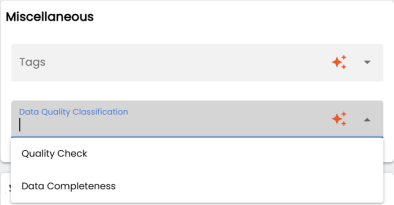
 - Under the Miscellaneous section, select a tag from the enterprise tag group dropdown. For example, Quality Check.
You can also select multiple tags from the dropdown only if the Multi Select is enabled for the respective tag group.
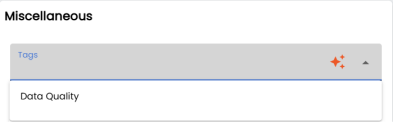
- (Optional) Under the Miscellaneous section, select a tag from the Tags dropdown suggestions. For example, Data Quality.
You can also select multiple tags from the dropdown only if the Multi Select is enabled for the respective tag group.
- If Master Enforced is disabled or switched off: You can type a custom tag name directly into the field and press Enter to create and assign a new tag. This new tag gets automatically added to the group's master list.
- If Master Enforced is enabled or switched on: You can only select from the predefined list; typing custom values will not create new tags.
- Select
 .
.
The tags are now assigned to the business asset.
Alternatively, on the Grid View tab, under the Options column, click .
The View Business Term screen opens in edit mode.
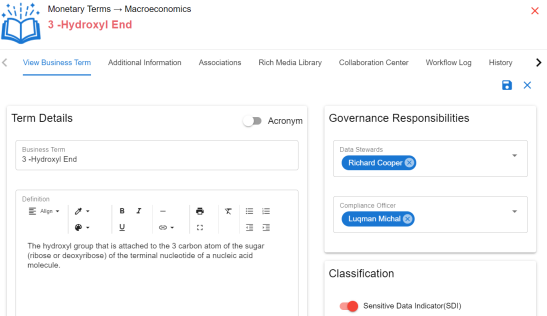
You can create an enterprise tag by typing it in the available tag dropdowns and pressing Enter. However, this depends on the Master Enforced Option set for the corresponding tag group.
You can use the same process to tag business policies, business rules, and other business assets.